In order to effectively host any game server, you will need a game panel of which provides a seamless negotiation with your projects, and is easy to navigate. At NovaCore, we believe client experience is imperative, as such we use a modified version of the Wisp panel, of which provides you with the modern tools and hardware to host servers of any calibre. With this panel, you can do tasks as simple as starting/stopping the server, installing mods/plugins and even configuring files using the built-in editor. This panel comes with endless features, and we hope you enjoy using it to the same extent of which we do.
To provide clarity and accesibility for all clients, we have explained many of its features below in detail, to ensure you are all experts in its usage.
The Console Page
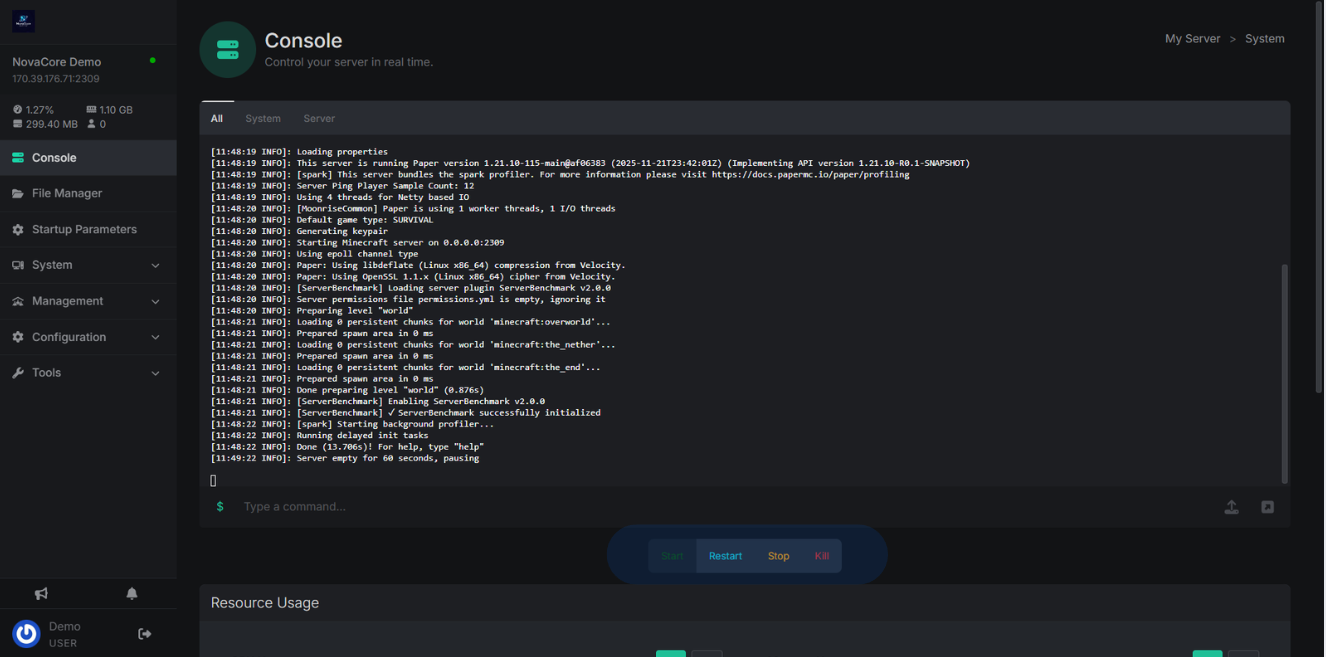
In this page, you can view a realtime console of all the resources functioning on the server. You can also control your servers power actions with the bar highlighted, and monitor its resources with the graphs below the terminal.
The File Manager
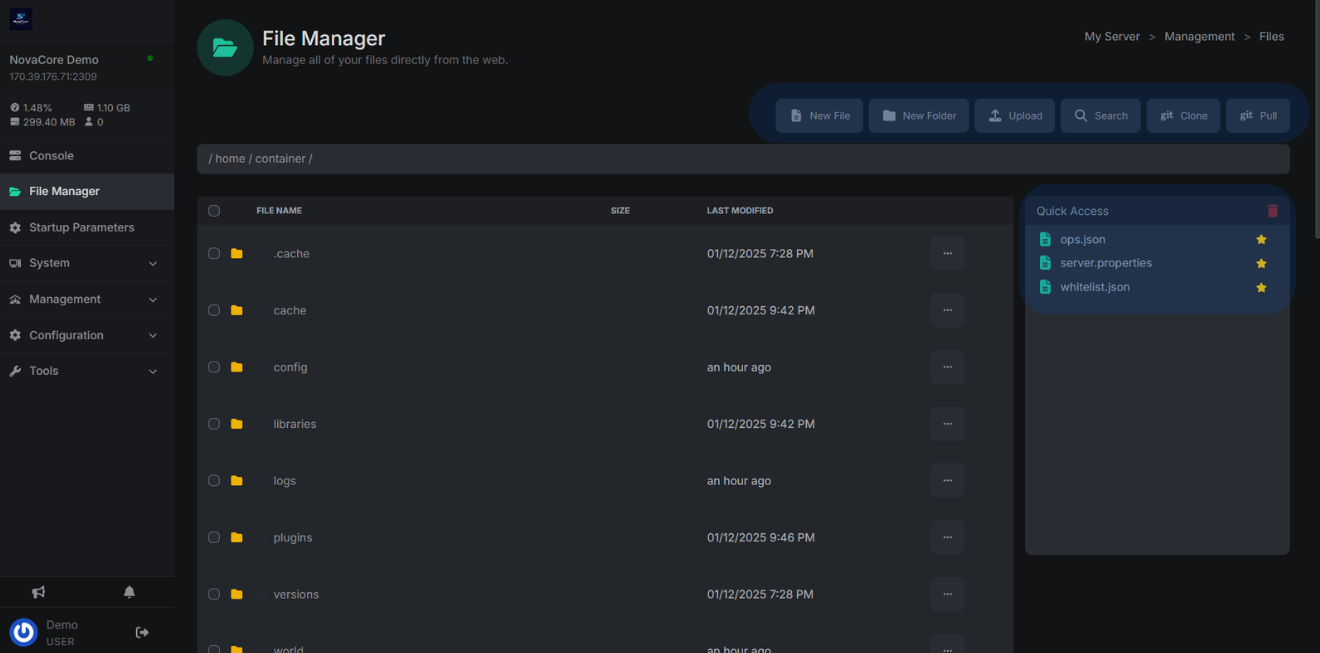
For this page, you can view all of your servers files, including all of your configuration documents, and any other files that may be associated with your server. There are a large array of tools available to you here where you can upload and link your github repo aswell. You also have access to the quick access bar, which shows your starred files, for quick, and easy access to important files. As highlighted below.
Startup Parameters
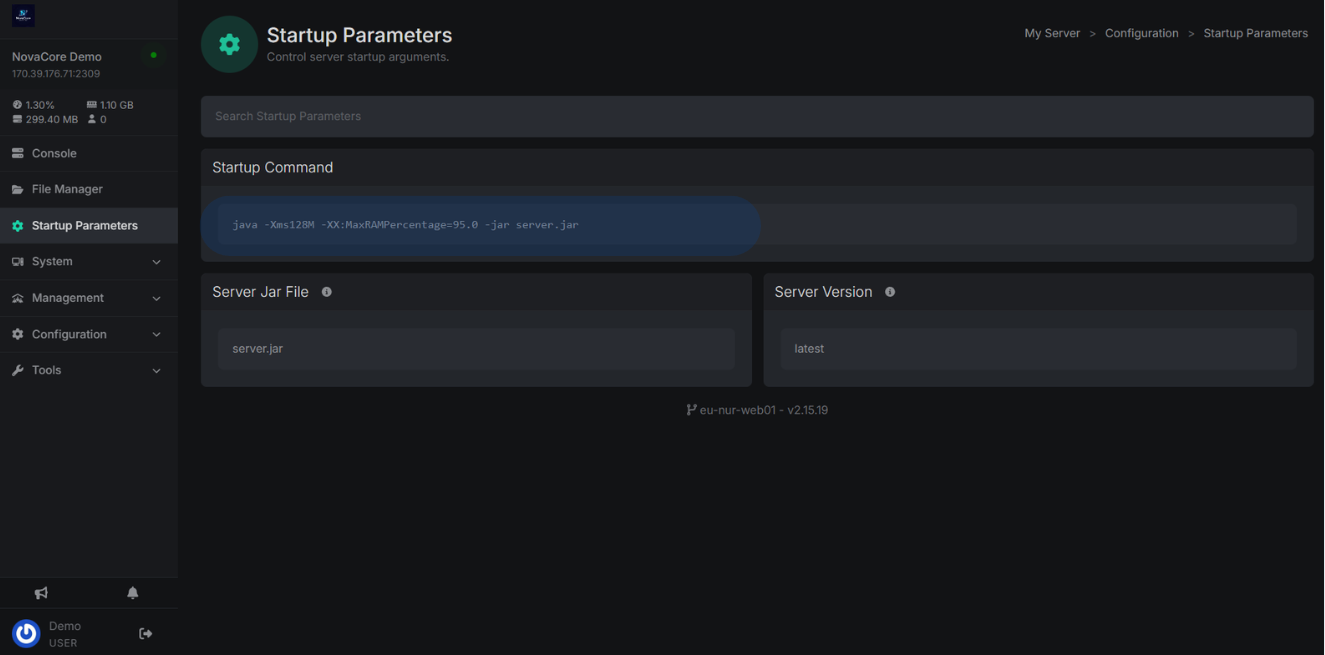
Regarding this section, you are able to view your server startup command, the jar file that our daemon reads when attempting to launch your server, and what version of that jar you want to specify. If you would like to change your startup flags at any time, please contact support via our Discord.
The System Tabs
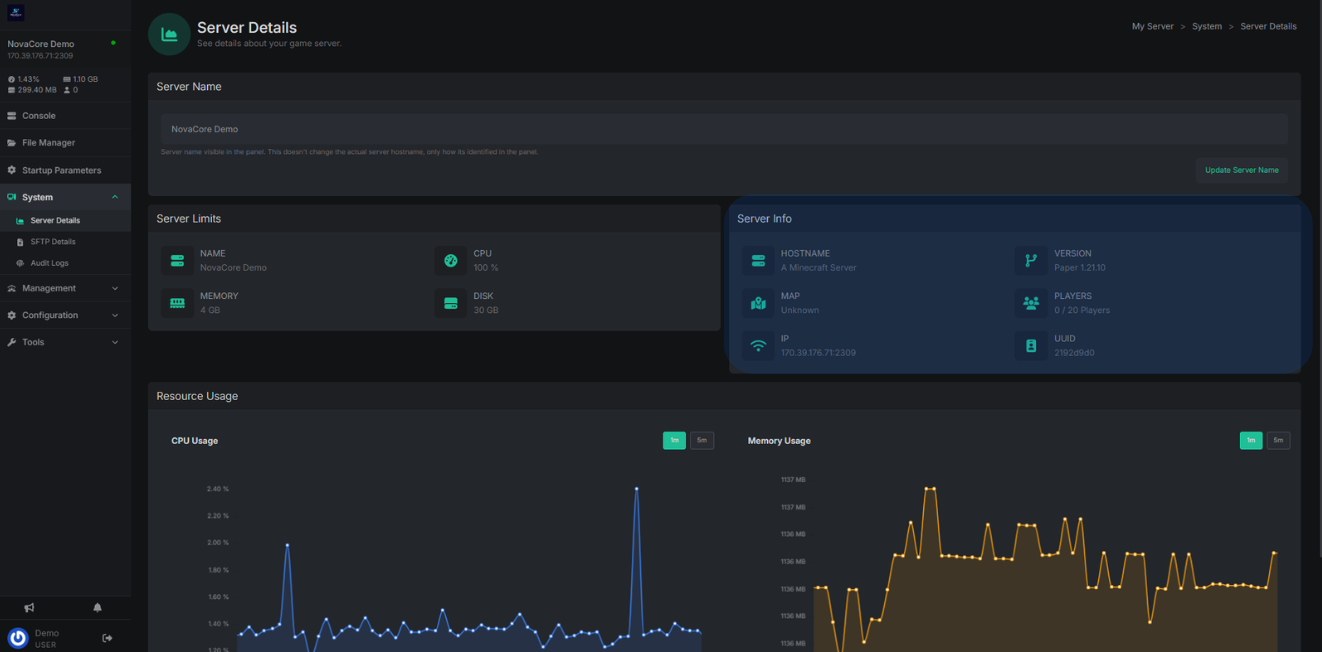
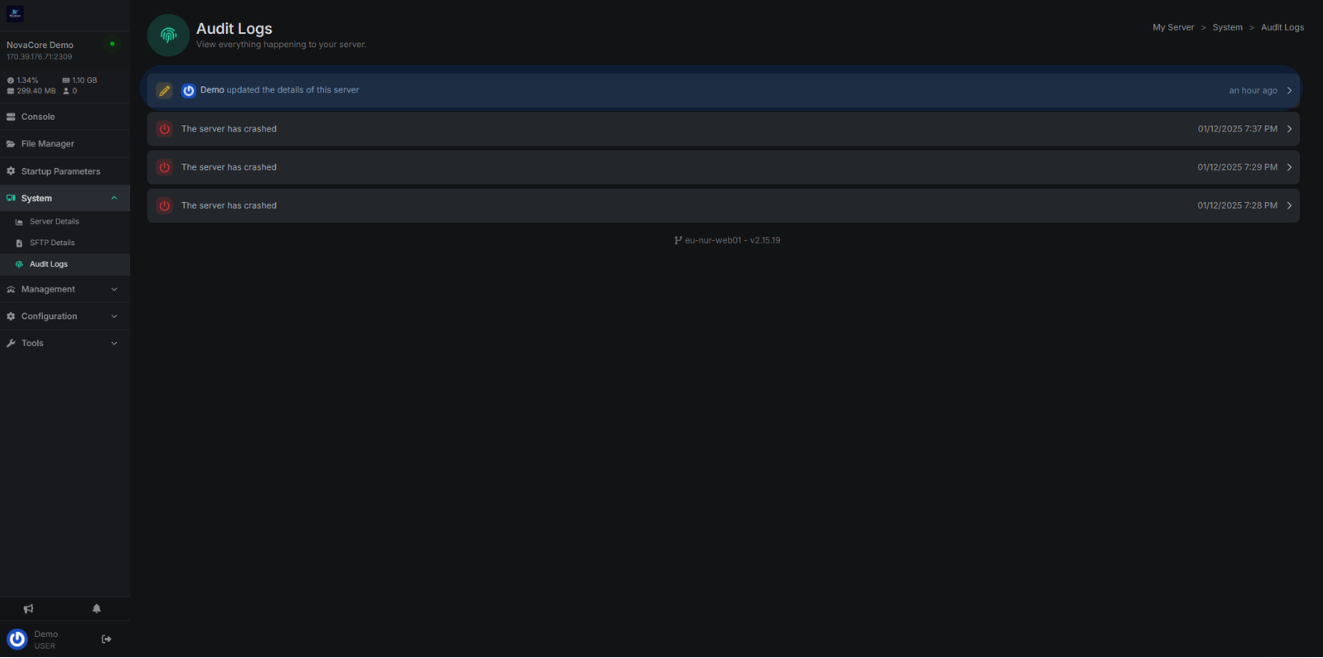
For the system area, you have 3 sections, the first being the server details tab, where you are able to change the name of your server, as visible in the panel, view basic information regarding your chosen server, and a repeat of the resources monitor. The next tab, SFTP details, provides you on the details of how to access, and use our SFTP system, of which allows you to upload bulkier items to your server. Finally, the last tab is the Audit Log, which does what it says on the tin, provides you with a realtime account of what changes have been made to your server. Examples of these are found below.
The Management section
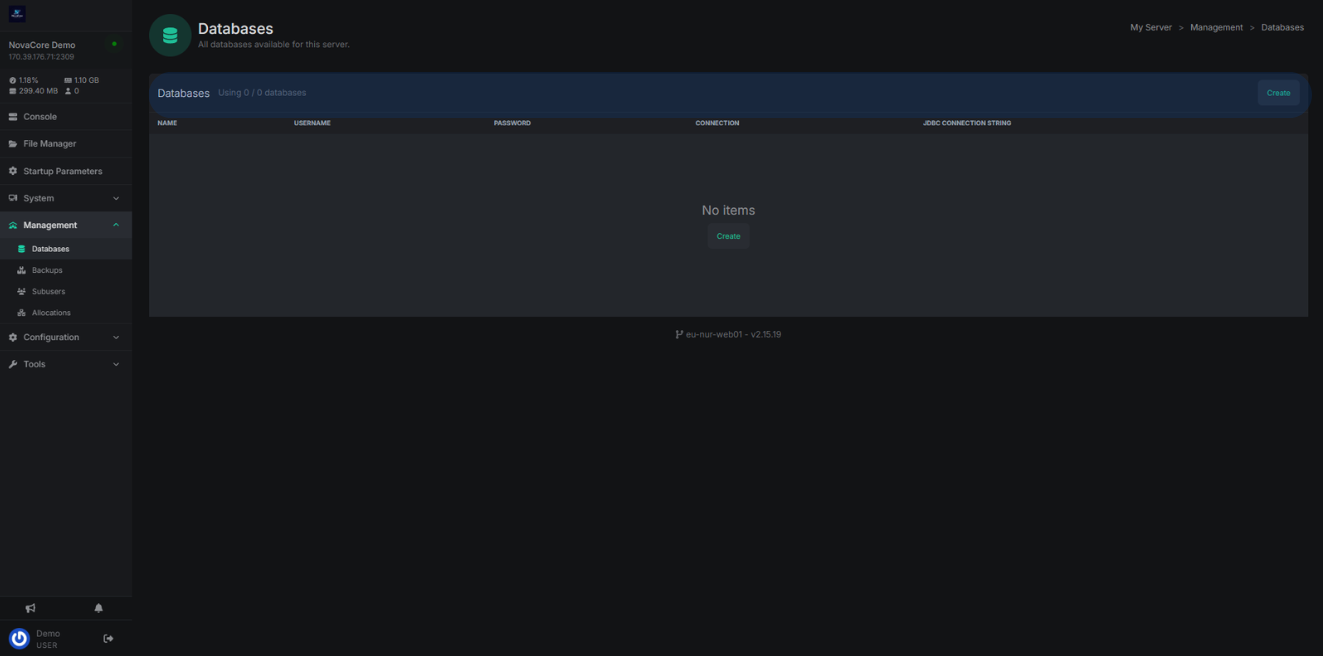
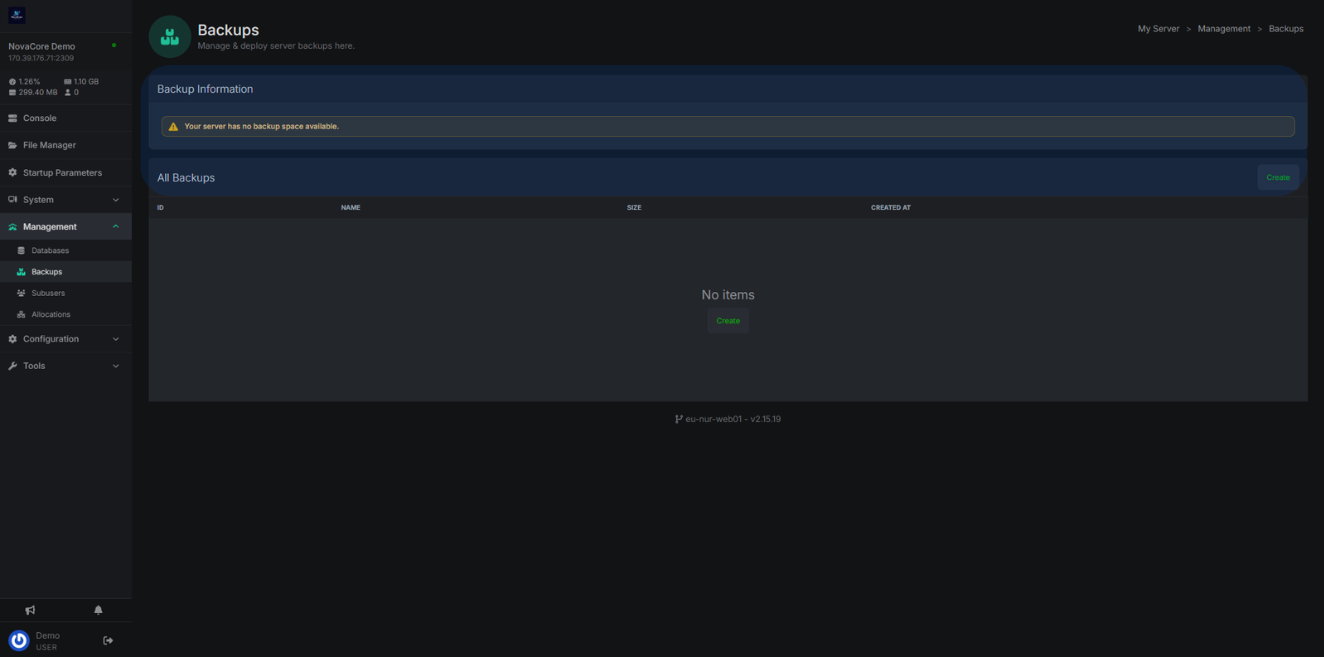
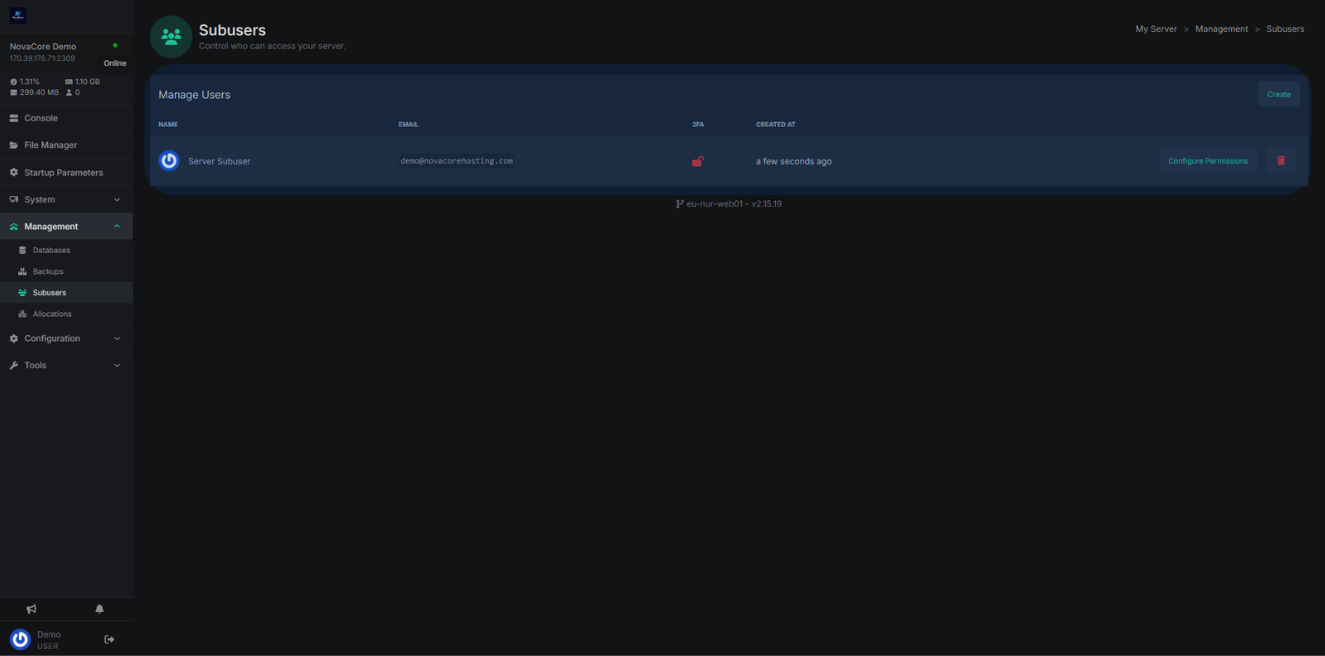
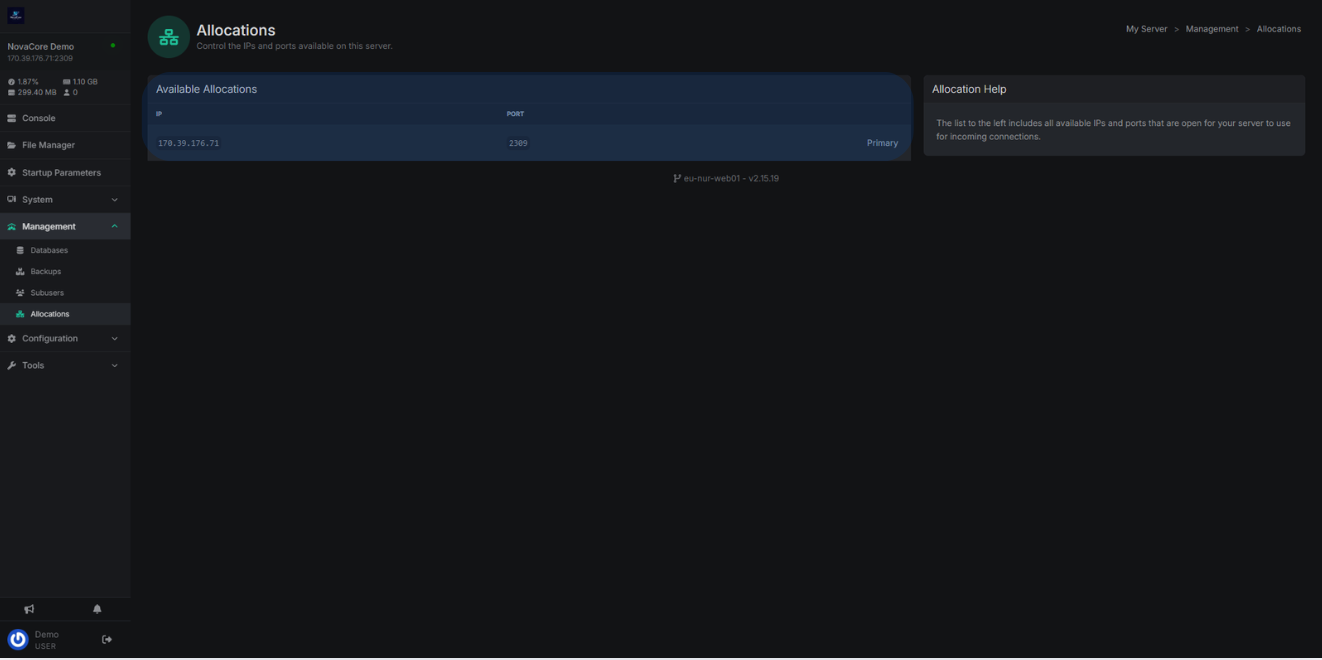
In regard to this area, there are 4 main area where you can manage some of the more advanced features of your server, including databases, backups, subusers, and port allocations. For help on using any of these, please refer to our other guides, this just gives you an overview of where to find these sections within the panel. Databases are created by filling in the adequate information, backups are subject to your server specifications, subusers lets you customise who has access to your server and port allocations allows you use more ports, if you have them.
Configuration Settings
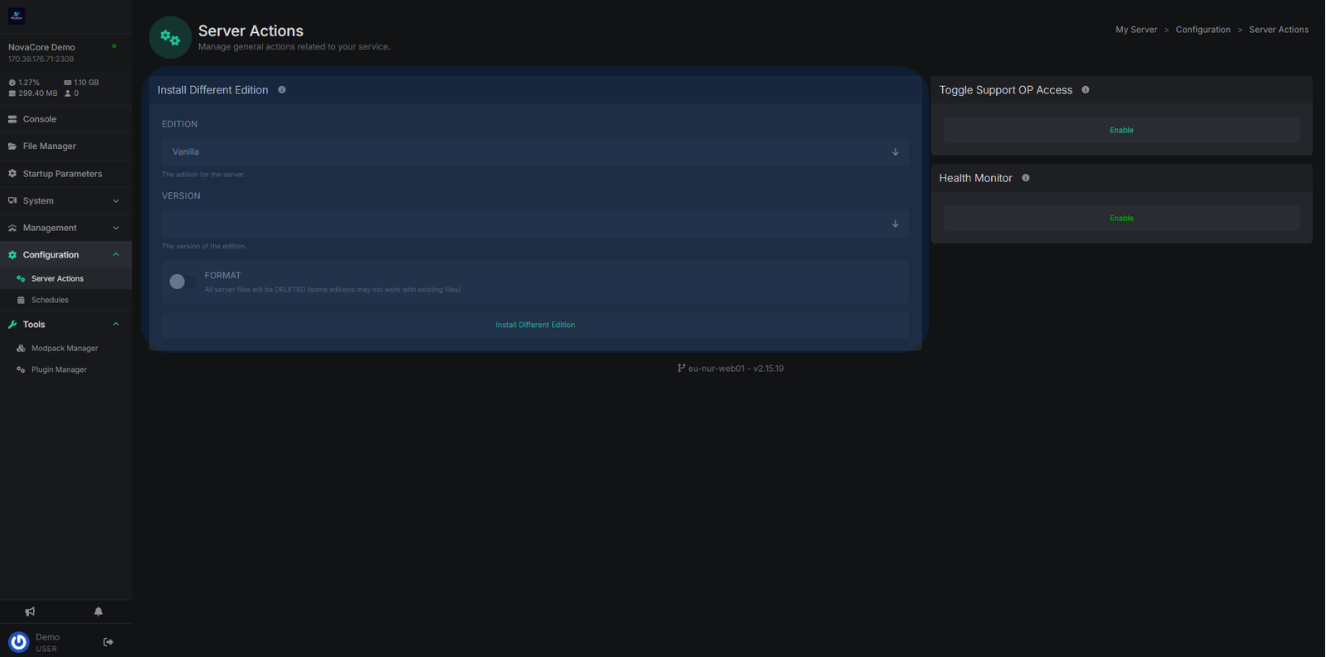
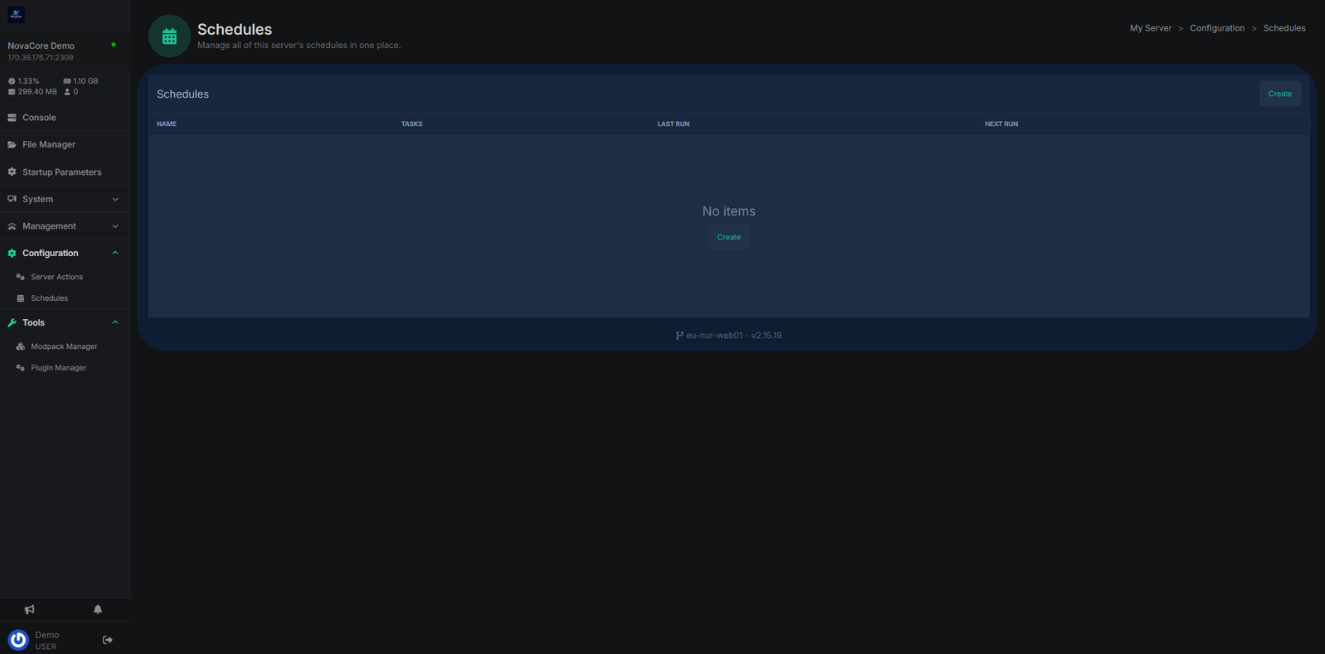
Next up, the server configurator, this is where you can do 2 seperate things, either, reinstall your server and select the jars and versions you would like, and make schedules for your server, to complete certain actions at different times (our other guides explains how this is possible). The server installer comes with many different versions and jars, however if there any missing that you'd like, then please contact support and we can assist with this. In this tab you can also toggle some diagnostic tools, these are usually requested by staff to help with an issue you may be facing.
The Tools
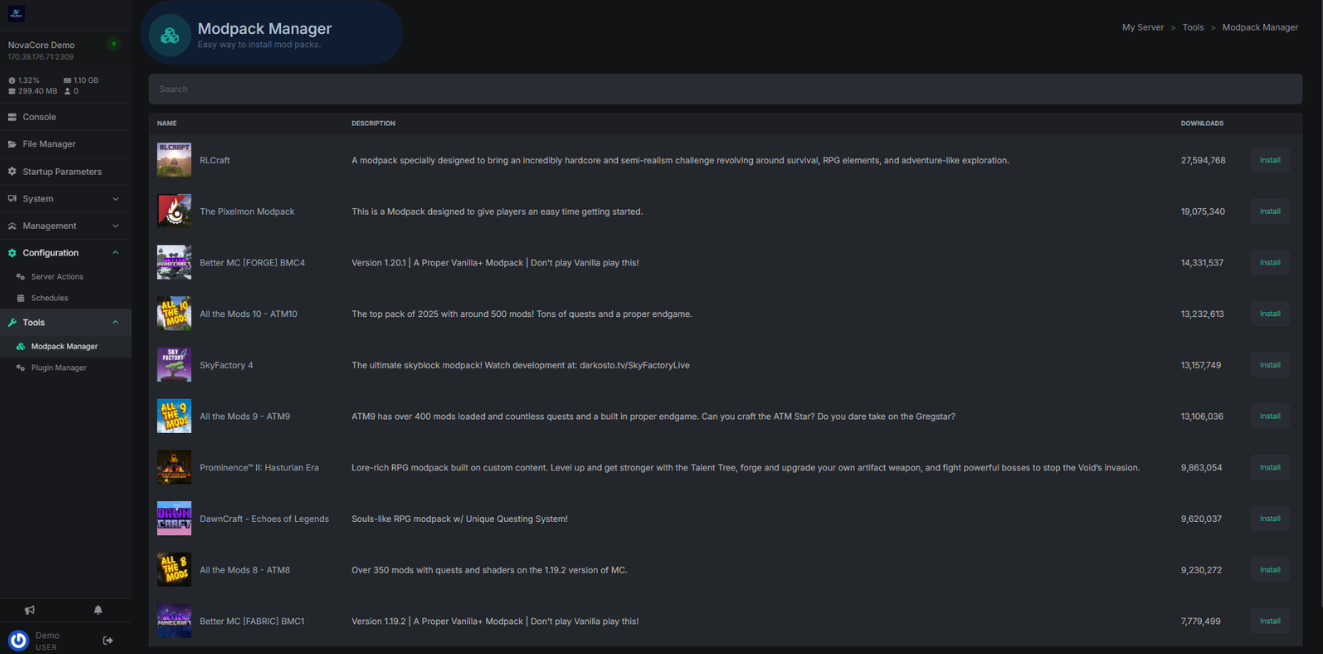
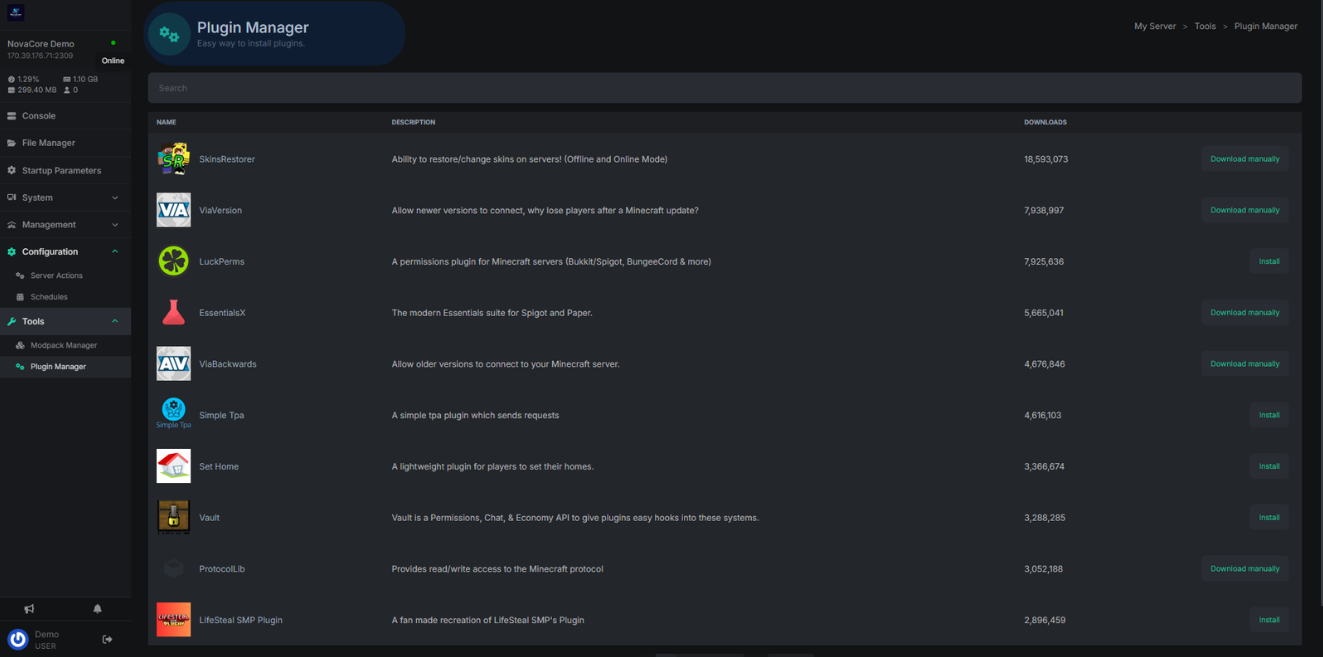
These are specific to the games you are hosting, but will typically include a modpack, and plugin manager. The modpack manager primarily includes some of the most popular, community created modpacks, such at ATM10 for Minecraft. The plugin manager follows the same premise, and depending on your game, has the most popular plugins for that game, like WorldEdit for Minecraft. Examples are below.
In summary..
Our panel is simple and intuitive. It holds a vast array of modern tools, without the need for major prior knowledge. This guide provided some basic concepts to help you navigate the panel much easier. If you have any more queries or concerns, feel free to reach out to us in Discord, and open a ticket. We hope you enjoy our panel!